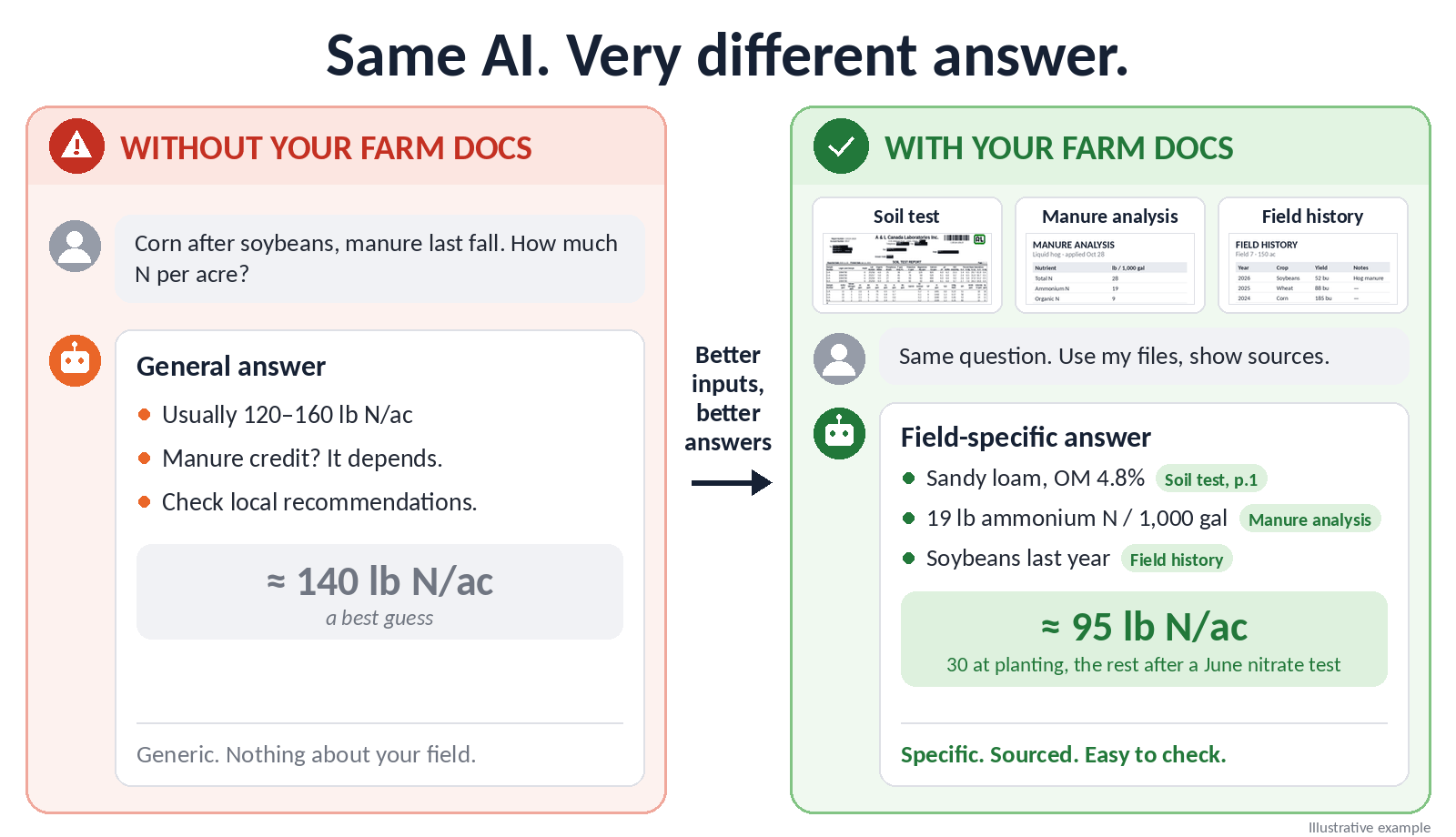
Ask ChatGPT how much nitrogen your corn needs and you’ll get an answer. It will sound sure of itself. It just won’t be about your field.
It doesn’t know your soil is sandy loam, that you spread 4,000 gallons of hog manure last fall, or that last year’s soybeans went 52 bushels. So it does what anyone would do without the facts: it gives you the textbook range.
The fix is simple. Give it your documents. Same AI, same question, very different answer.
The 60-second version
- The problem: AI answers farm questions from general memory, so the answer fits an average farm, not yours.
- Why: it has never seen your soil tests, manure analyses or field records.
- The fix: upload those files and ask it to answer only from them.
- What you get: answers built on your numbers, with the page each one came from.
- How: a free tool like Gemini Notebook (formerly NotebookLM) takes about ten minutes to set up.
- The catch: it can still misread a table. Open the cited page before you act on a number.
Jump to: How it works · Step by step · What’s safe to upload
Why AI guesses about your farm, and how your documents fix it
A chatbot like ChatGPT learned from a huge pile of public text: university guides, forum posts, magazine articles. When you ask it something, it answers from that memory. That works for general questions. It falls apart on questions only your own records can answer.
Think of a closed-book exam versus an open-book one. Answering from memory, AI is like a hired hand who read the agronomy guide once, years ago. Hand it your binder and it can look things up and show you the page.
When you give AI your documents, it does three things. It searches your files, pulls out the passages that relate to your question, and writes its answer from those passages, with a reference back to each one.
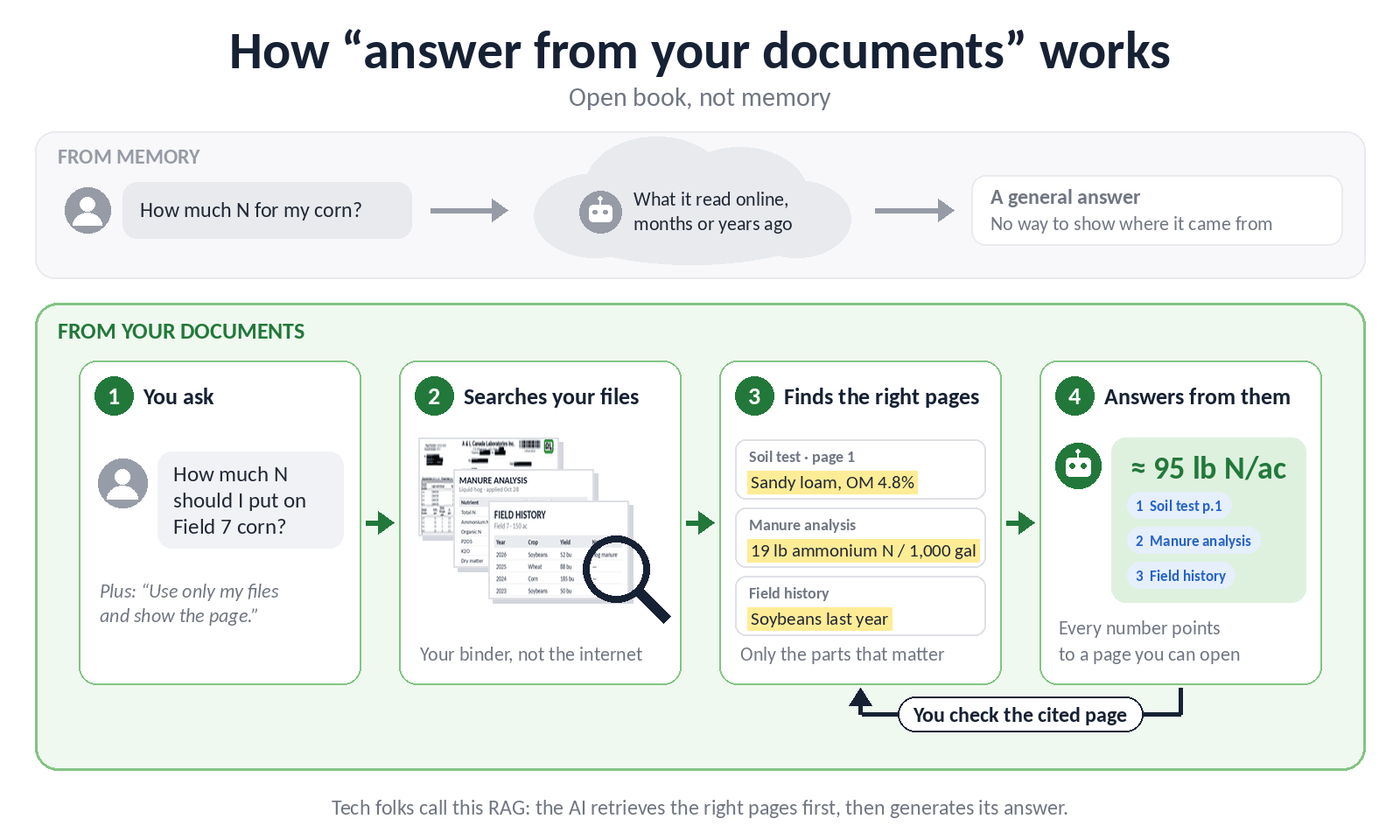
You may hear this called RAG, short for retrieval-augmented generation. You don’t need the term. What matters is the habit it gives you: every number in the answer can be checked against the page it came from.
Can’t AI just search the web? It can, and for public information like a product label that helps. But no search engine has your soil test, your manure analysis or last year’s yields. That information lives in your filing cabinet, and you’re the only one who can hand it over.
Step by step: give Gemini Notebook (NotebookLM) your farm files
We use Gemini Notebook for this walkthrough. It’s the Google tool that was called NotebookLM until July 2026, and it still lives at the same address (notebooklm.google). We picked it for two reasons. The free version works with any Google account, and it sticks to the files you give it instead of mixing in what it read elsewhere.
The example is the one from the top of the page: planning nitrogen for corn on a field that was in soybeans, with hog manure spread last fall.
1. Gather your files, and scrub them. For this question that’s three files: the soil test, the manure analysis and a one-page field history. PDFs, Word files, Google Docs and Google Sheets all work. If your records are in Excel, open them in Google Sheets or save them as a PDF first. Before you upload, remove your name, the farm name and the lot and concession numbers. (More on that in What’s safe to upload.)
2. Start a new notebook. Sign in at notebooklm.google and create a notebook. Name it after the field or the job, like “Field 7, 2027 corn”.
3. Add your sources. Drag the files in. Each one appears in the Sources panel once it’s ready. The free version holds up to 50 sources per notebook, which is plenty for a field, a farm or a client.
4. Ask, and tell it how to answer. This is the step most people skip. Add three instructions to your question:
[Your question.] Use only the files I’ve added. For each number, tell me which file and page it comes from. If something isn’t in the files, tell me what’s missing.
Then add the facts that aren’t written down anywhere: your yield goal, your county, how the manure went on, and what you’re after (cutting cost or pushing yield). The more of your situation you give it, the less it has to assume. See why AI gives generic farm answers, and how to fix your prompt.
5. Check the citations. Each point in the answer carries a small number. Click it and you see the exact passage it came from. Check every number you would act on, especially rates, dates and anything pulled from a table. See how to check an AI answer before you act on it.
Using ChatGPT, Claude or Gemini instead? The same idea works. Create a Project in ChatGPT or Claude, or a Gem in Gemini, and upload your files there (Projects in ChatGPT help page). These tools mix your files with their general knowledge more freely, so the “use only my files” instruction matters even more.
When to double-check
- Scanned or photographed pages. The text can be read wrong. Check key numbers against the paper copy.
- Tables. Rows and columns get mixed up, and rate tables are the usual culprit.
- Old versions. Last year’s program guide gives last year’s answer. Keep one current version of each file in the notebook.
- Numbers with no citation. If a number in the answer has no reference, ask where it came from. It may be from general knowledge, not your files.
Three ways farm teams use it
Some jobs need a notebook once. Others are worth keeping all season. Here’s one of each, for the people we work with most.
Farm office: turn a program guide into a checklist (one-off)
Whoever handles the farm’s paperwork knows the drill: a 40-page program guide, a deadline, and the worry of missing one form. Upload this year’s AgriStability guide from Agricorp (Agricorp AgriStability publications), or an OSCIA cost-share program guide, and ask:
You get a checklist to work through, and when someone asks “where does it say that?”, you have the page. See program paperwork with AI: AgriStability and OSCIA.
Grower: a field binder that answers back all season (keep it)
Set up one notebook for the farm, or one per field, holding soil tests, manure analyses, field history, yield summaries and seed records. In spring, ask for the nitrogen plan. In summer, ask which fields have dropped in potassium since their last test. In the fall, ask which fields need manure most. Add each new report as it comes in, and the notebook gets more useful every season.
Crop adviser: one notebook per client (keep it)
For CCAs and independent agronomists. Keep a notebook for each client with their soil tests, your past recommendations and your scouting notes. Before a winter meeting, ask:
Use field codes instead of client names. More on that below. See from scouting notes to client report with AI.
What’s safe to upload? Use the traffic light
Most farm files are fine to use with AI. A few should never go near it. The rest are fine once you strip out who they belong to.
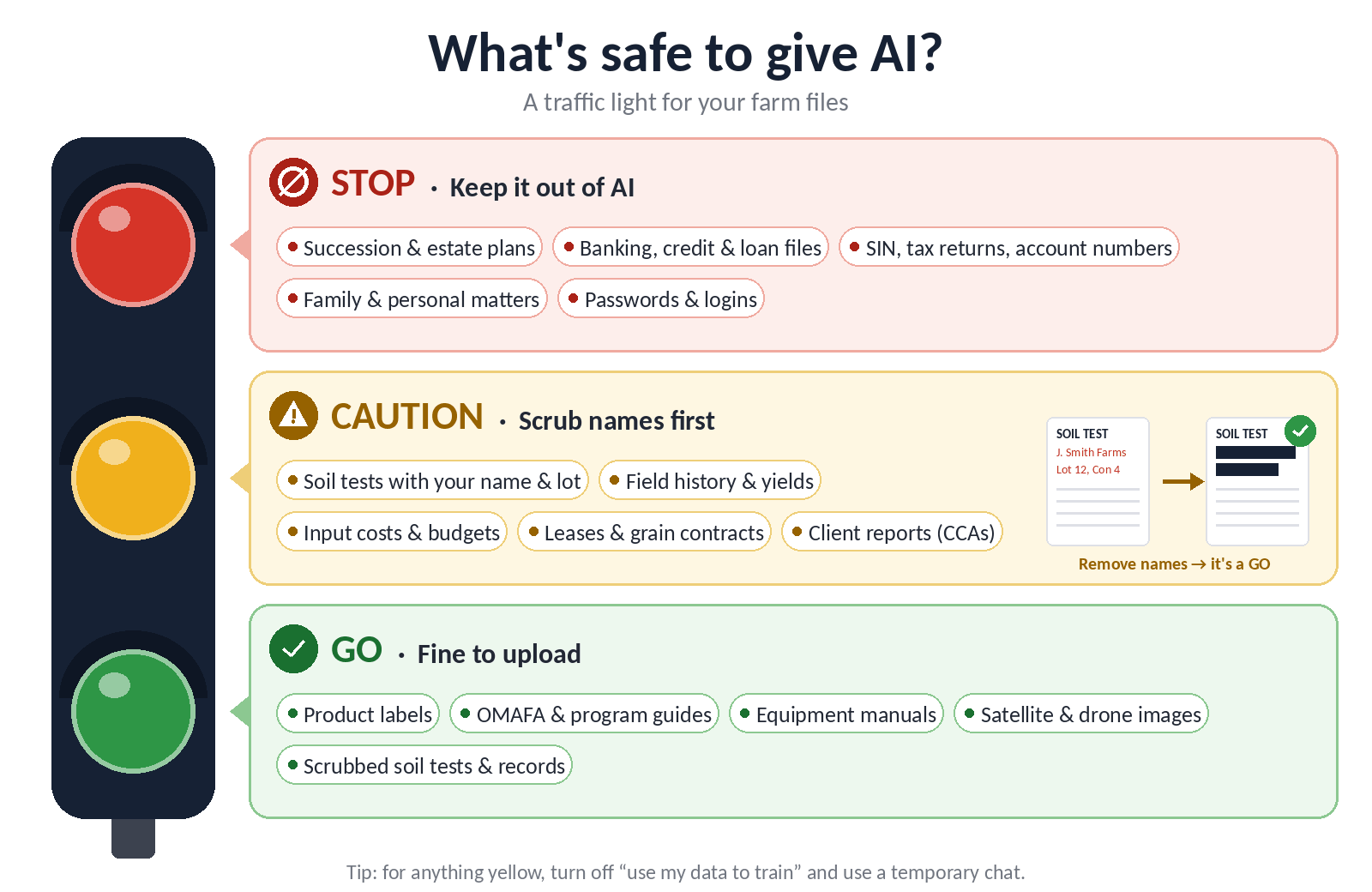
- Green, go. Public and generic documents: product labels, OMAFA and program guides, equipment manuals, and any record with the names taken out.
- Yellow, scrub first. Your soil tests, field history, yields, input costs, leases and client reports. The numbers are fine; the names, addresses, lot numbers and account numbers aren’t. Take those out and a yellow file turns green.
- Red, stop. Succession and estate plans, banking and credit files, SIN and tax returns, family matters, passwords. Keep these out, even with names removed.
To make scrubbing quick, we built a free tool that blanks out names, addresses and lot numbers in a PDF before you upload it.
Farm File Scrubber: coming soon
Two settings are worth a minute:
- ChatGPT: under Settings, then Data controls, turn off “Improve the model for everyone”. For anything yellow, use a temporary chat so it isn’t saved to your history.
- Gemini Notebook: Google says files you upload are not used to train its models (Google Workspace: NotebookLM). Scrubbing is still a good habit, because your files are still stored in your Google account.
For the full guide, see what’s safe to put into AI on a farm.
Want help setting this up?
Reading about it is one thing. Doing it on your own files, with someone beside you, is faster. We run:
- Hands-on workshops for farm offices, CCA groups, commodity organizations and winter meetings. Bring a laptop and a few scrubbed files, and leave with a working notebook.
- Custom training for farm and ag-retail teams that want this built around their own records and paperwork.
FAQ
Is NotebookLM free?
Yes. NotebookLM, now called Gemini Notebook, has a free version that works with any Google account. It allows up to 50 sources per notebook and 50 questions a day, which covers most farm jobs. Paid plans raise those limits.
Is NotebookLM the same as Gemini Notebook?
Yes. Google renamed NotebookLM to Gemini Notebook in July 2026. It still works at notebooklm.google.
Is it safe to upload my soil test to ChatGPT or NotebookLM?
A soil test with your name, farm name and lot number removed is low risk. Scrub those details first, and keep financial, legal and family documents out entirely. The traffic light above shows what goes where.
Can AI read scanned PDFs or photos of documents?
Usually, yes. Scanned tables are where mistakes creep in, though, so check the key numbers against the original.
Can I trust AI for fertilizer or manure rates?
Use it to pull your numbers together and do the arithmetic, not to make the final call. Check the cited pages, run the rate past your agronomist, and stay within your nutrient management plan if you have one.
What’s the difference between ChatGPT and NotebookLM for farm records?
NotebookLM sticks to the files you add and cites them by default. ChatGPT is broader and can also search the web, but you have to tell it to stay inside your files and to cite them.
What is RAG in AI?
RAG stands for retrieval-augmented generation. The AI first retrieves the passages in your documents that relate to your question, then writes its answer from them. It’s the method behind tools that answer from your own files.